Help and troubleshooting

Help when you need it.

Find guidance for ChronoQ features, troubleshooting, ChronoQ Pro, privacy questions, and common app issues.
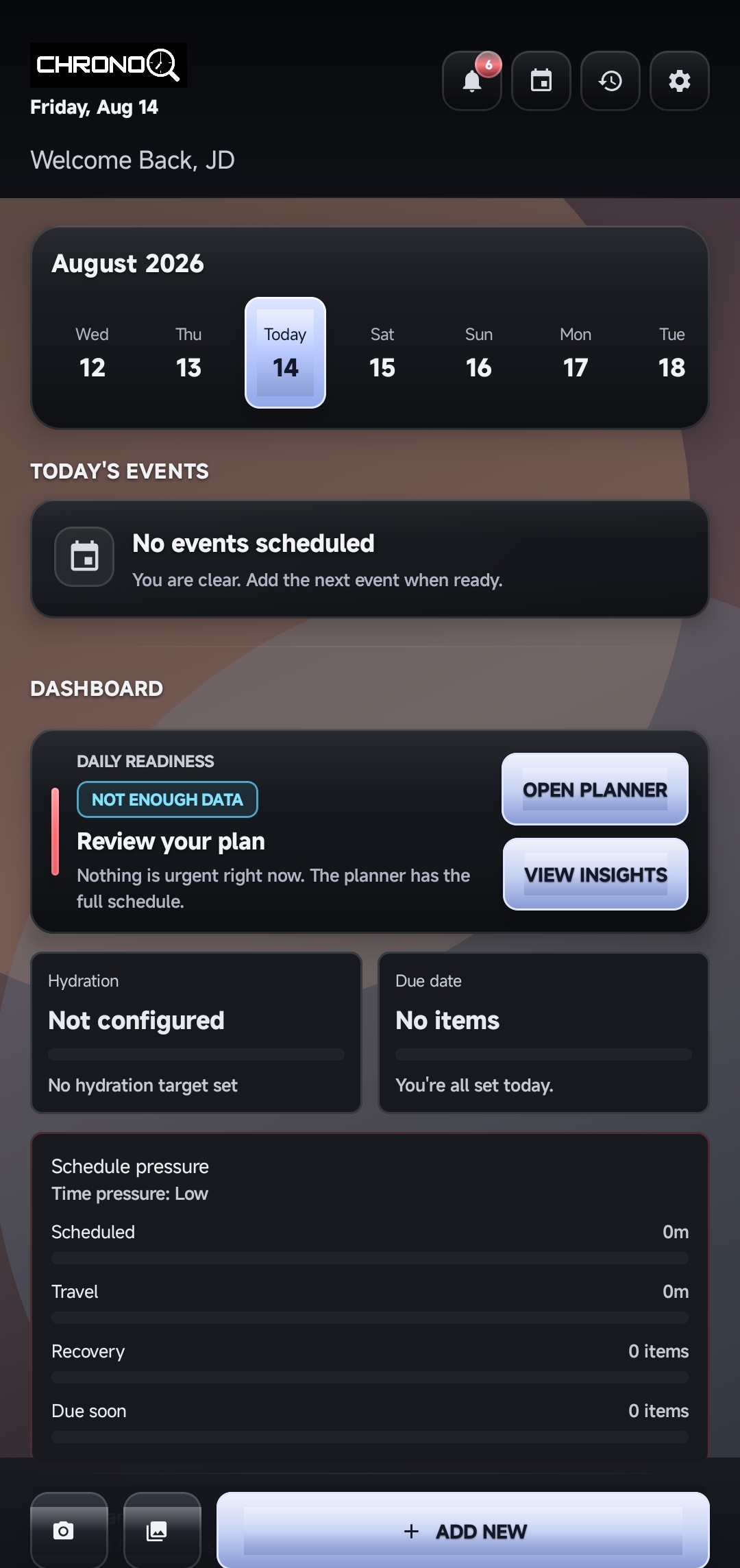
ChronoQ dashboard screen
Need more help? Contact support@chronoq.app. We aim to respond within 1–3 business days.

1. Contact Support

If you need help with ChronoQ, contact:

We aim to respond within 1–3 business days, although response times may vary depending on the type and volume of requests.

2. What We Can Help With

  • Maps, route planning, ETA, or navigation issues.
  • Location permission or active-guidance problems.
  • Planner, event, reminder, alarm, or notification issues.
  • Android calendar import.
  • Camera, gallery, text-recognition, or event-draft features.
  • Saved places, route history, backup, or restore features.
  • ChronoQ Pro purchase or restore-purchase issues.
  • App crashes, unexpected behavior, or general technical problems.

3. Before Contacting Support

  • Make sure you are using the latest available version of ChronoQ.
  • Confirm your internet connection is working for online map, routing, and geocoding features.
  • Check that the Android permissions required by the feature are enabled.
  • Restart ChronoQ and, if appropriate, restart your device.
  • For reminder or notification issues, review notification, alarm, battery, and background-app settings.
  • For ChronoQ Pro issues, confirm Google Play is using the same Google account associated with the purchase.

4. What to Include in a Support Request

  • A short description of the problem.
  • The ChronoQ feature you were using.
  • The steps that led to the problem.
  • Your Android device model and Android version, if relevant.
  • Your ChronoQ app version, if available.
  • A screenshot of the issue, if safe to share.
Do not send passwords, payment-card details, private keys, API keys, credentials, or Google Play purchase tokens by email.

5. ChronoQ Pro and Billing Help

ChronoQ Pro purchases are processed through Google Play Billing. ChronoQ does not collect or store your payment-card details.

For purchase or restore-purchase issues, you may contact ChronoQ Support. Subscription management, cancellation, payment-method changes, and many billing actions are handled through Google Play and remain subject to Google’s applicable policies.

6. Privacy and Data Requests

For privacy questions or requests relating to information processed by ChronoQ, contact:

ChronoQ currently does not require a ChronoQ account, registration, or login. Some information used by the app may exist only on your device or in backup files under your control.

7. Removing Local ChronoQ Data

  • Edit or remove supported events, saved places, history, or other information through available ChronoQ controls.
  • Delete backup or export files that you created and stored outside the app.
  • Clear ChronoQ app storage through Android settings if you want to remove locally stored app data.
  • Uninstall ChronoQ to remove app data associated with the installation, subject to any backup or exported files you kept separately.
Clearing app storage or uninstalling the app may permanently remove local information that has not been separately backed up.

8. Related Pages